Updated · iOS 27 · 7 min read
How to Lock (or Block) Apps on iPhone: Every Built-In Way
To lock an app on iPhone, touch and hold its icon and tap Require Face ID. To block apps by schedule or daily time, use Settings → Screen Time. Every iPhone can lock or block an app several ways, all free and built in, and all honest about one limit: you can turn each off yourself. This guide covers every built-in method on iOS 27 with exact steps and its real off-switch, then why they all fail the same way. If you want a lock that someone else has to approve, LockPact is a free-to-use iOS app where your partner decides when you get back in.
What is the difference between locking and blocking an app?
Locking an app means opening it needs Face ID, a fingerprint or your passcode. Blocking an app means Screen Time stops you using it, by schedule or by an allowance. Locking protects an app from other people picking up your phone. Blocking is for your own habits. Most people searching “lock apps” mean one, and most people searching “block apps” mean the other.
How do you lock an app on iPhone?
Touch and hold the app’s icon on your Home Screen, tap Require Face ID (or Touch ID or Passcode), then tap it again to lock the app. From then on the app needs your face, finger or passcode to open, and it locks again every time you leave it. Apple says information inside a locked app also stays out of notification previews, search, Siri suggestions and your call history.
- On the Home Screen, touch and hold the app until the Quick Actions menu opens.
- Tap Require Face ID (or Touch ID or Passcode), then tap it again to lock the app. To open it later, authenticate each time.
- To hide it as well, tap Hide and Require Face ID, authenticate, then tap Hide App. The app moves to a Hidden folder at the bottom of App Library, and Settings → Apps → Hidden Apps lists what’s hidden.
To undo it, touch and hold the app (or open it from the Hidden folder), tap Don’t Require Face ID, and authenticate. That’s you, with your own face. Apple’s iOS 27 guide says apps that come installed can’t be hidden. Its earlier guides listed Calculator, Camera and Settings as apps that can’t be locked this way; the iOS 27 guide doesn’t repeat that list, so check on your phone. The locked or hidden state stays on that iPhone and doesn’t sync through iCloud.
Why does every built-in lock fail the same way?
Because you know the code. Require Face ID opens for your face. Screen Time’s tools, covered next (Time Allowances, Schedules and Content & Privacy Restrictions), all unlock with the Screen Time passcode, and by default you set that passcode. The person who needs the limit is the person who can remove it, usually at 11pm when you’re tired and your thumb is already moving.
No setting changes that completely. A device owner can always get around an iPhone restriction, and anyone who tells you otherwise is overclaiming. What changes the outcome is who holds the code. If your partner or a friend you trust sets the Screen Time passcode and you don’t know it, turning off a limit stops being a tap and becomes a conversation. How to set, change, or hand off your Screen Time passcode covers the passcode on iOS 27, and Lock Screen Time Settings: give your partner the passcode walks through the setup and the loopholes that still exist.
Where does LockPact fit?
LockPact is the version where unlocking isn’t your decision. You and a partner each choose apps to lock on your own phones, and opening one means asking the other person to approve it. If either of you bypasses it in Settings, which Apple always allows, the other is told straight away. It needs someone you trust, and it’s iPhone only.
It’s free to use, with no premium tier gating the partner features. The only optional purchases are Support LockPact and Willpower Waivers ($1.99–$9.99), which skip the short video before an unlock request. Get LockPact on the App Store.
How do you block apps on iPhone with Screen Time?
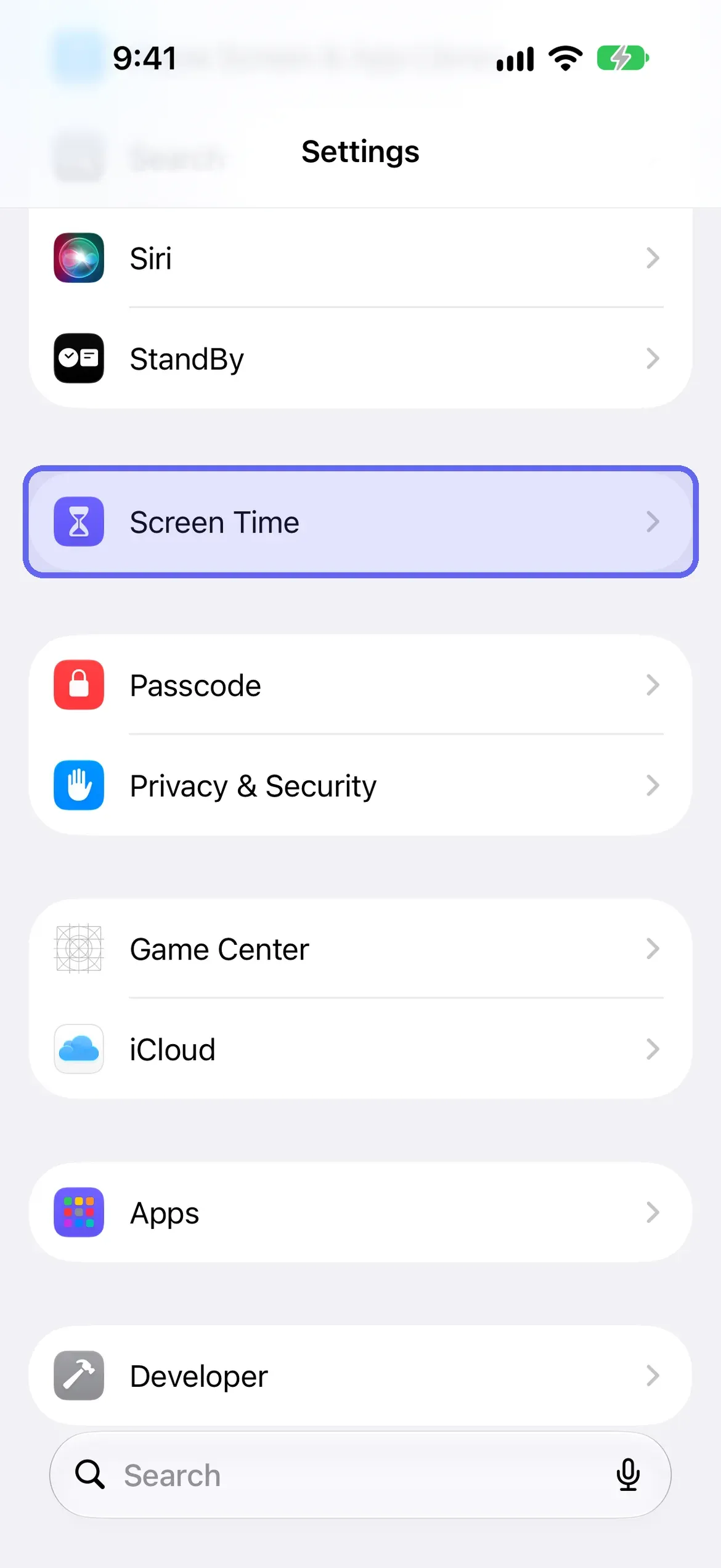
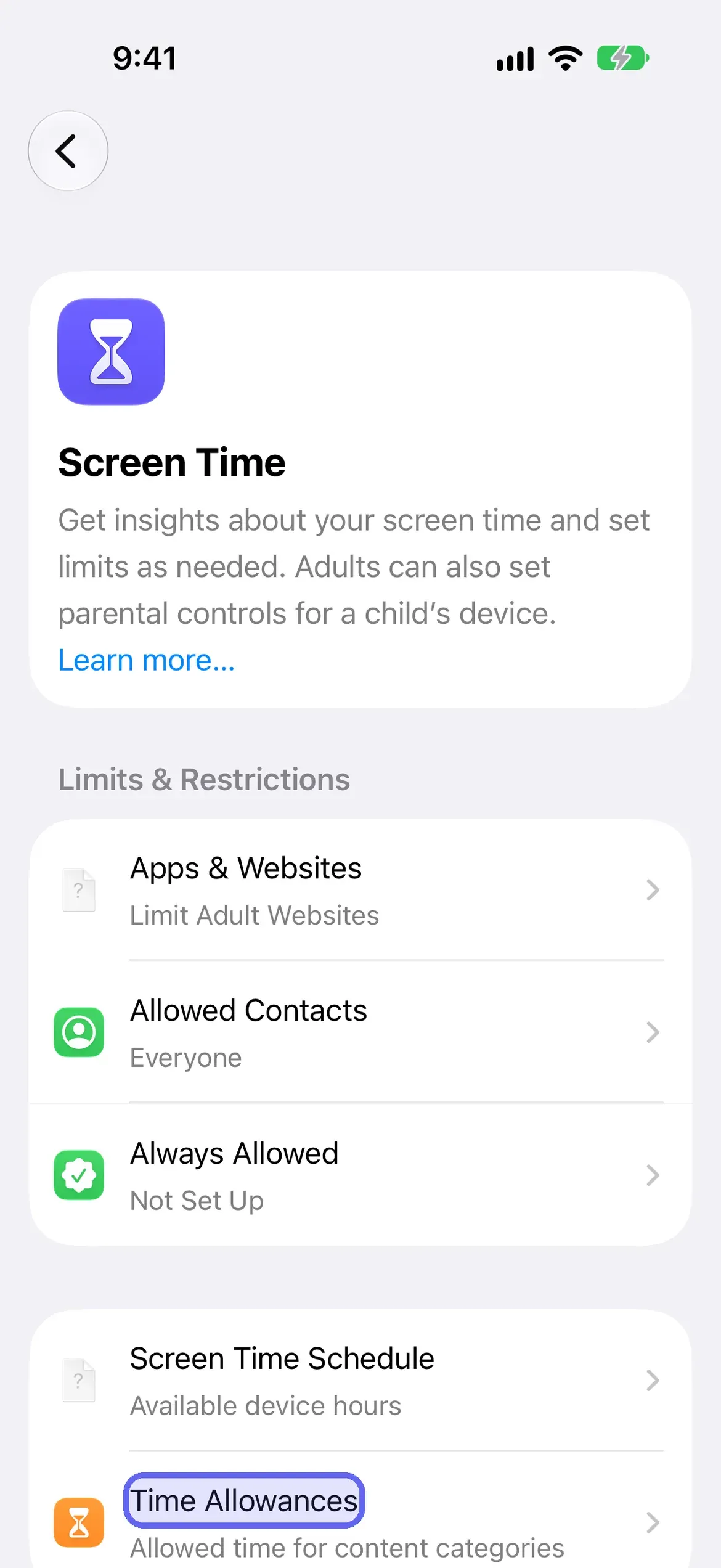
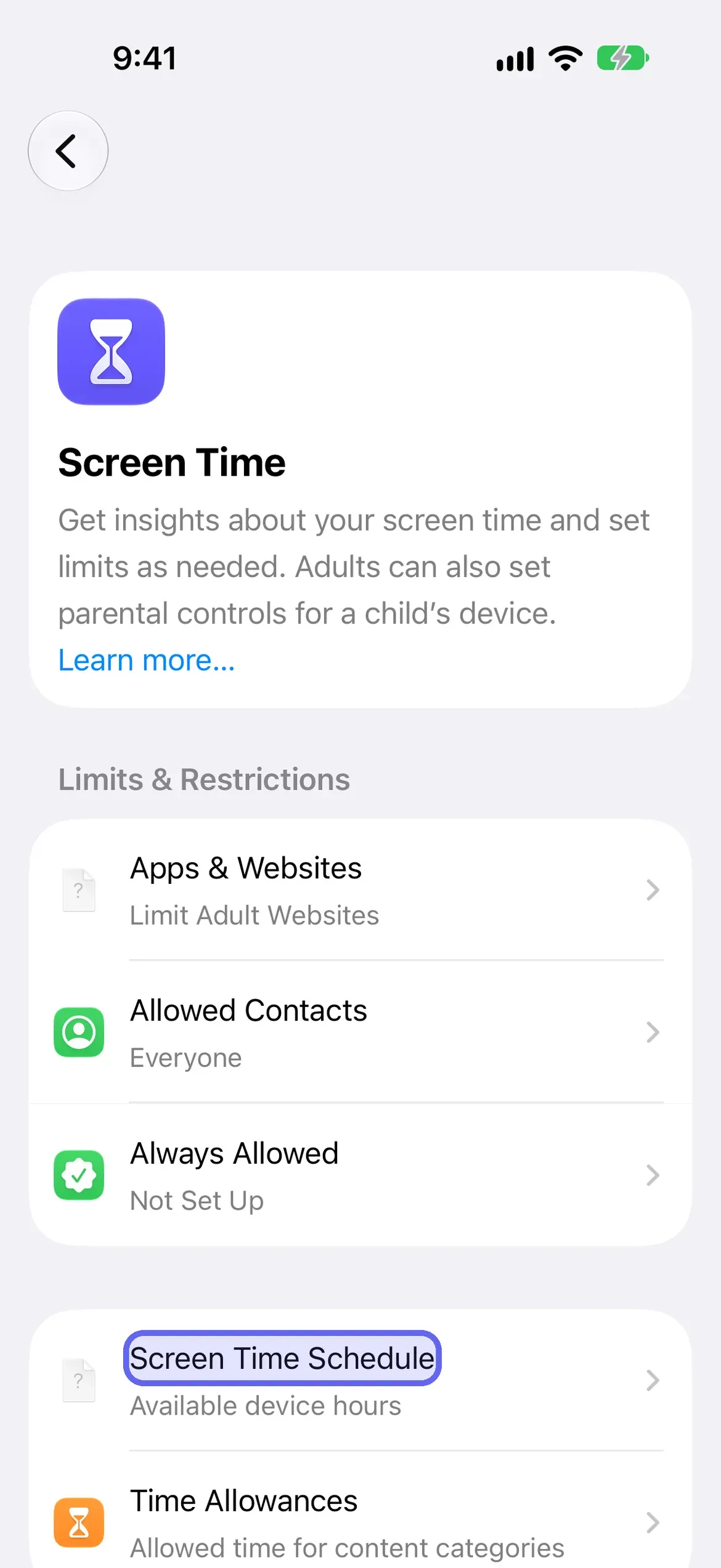
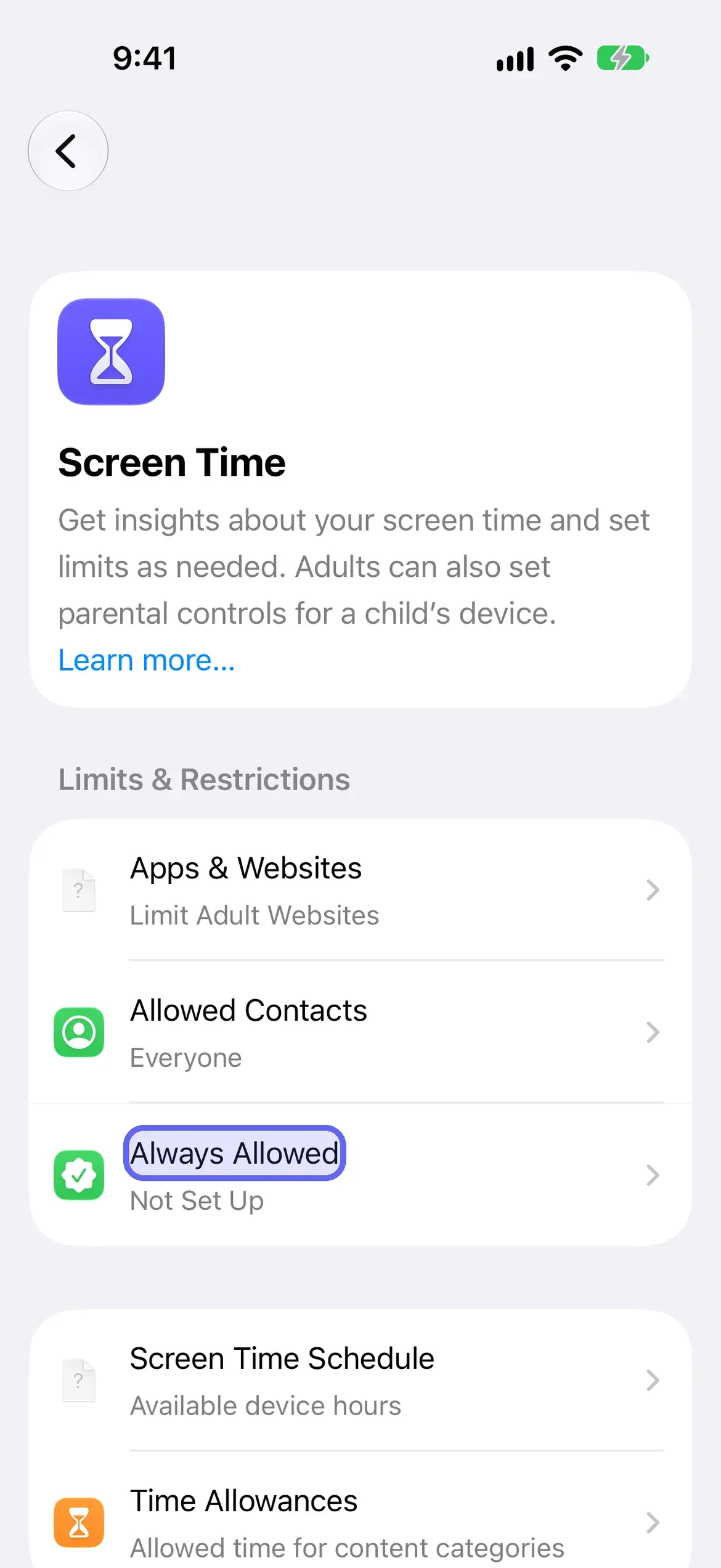
On iOS 27, open Settings, tap Screen Time, and choose the tool that matches what you want. Screen Time Schedule sets hours when only the apps you allow are available, Time Allowances set daily time per category, Always Allowed lists exceptions, and Content & Privacy Restrictions controls content and features. These replace iOS 26’s App Limits and Downtime. Each has the same weakness: whoever knows the Screen Time passcode can change it, and by default that’s you.
Find each Screen Time tool
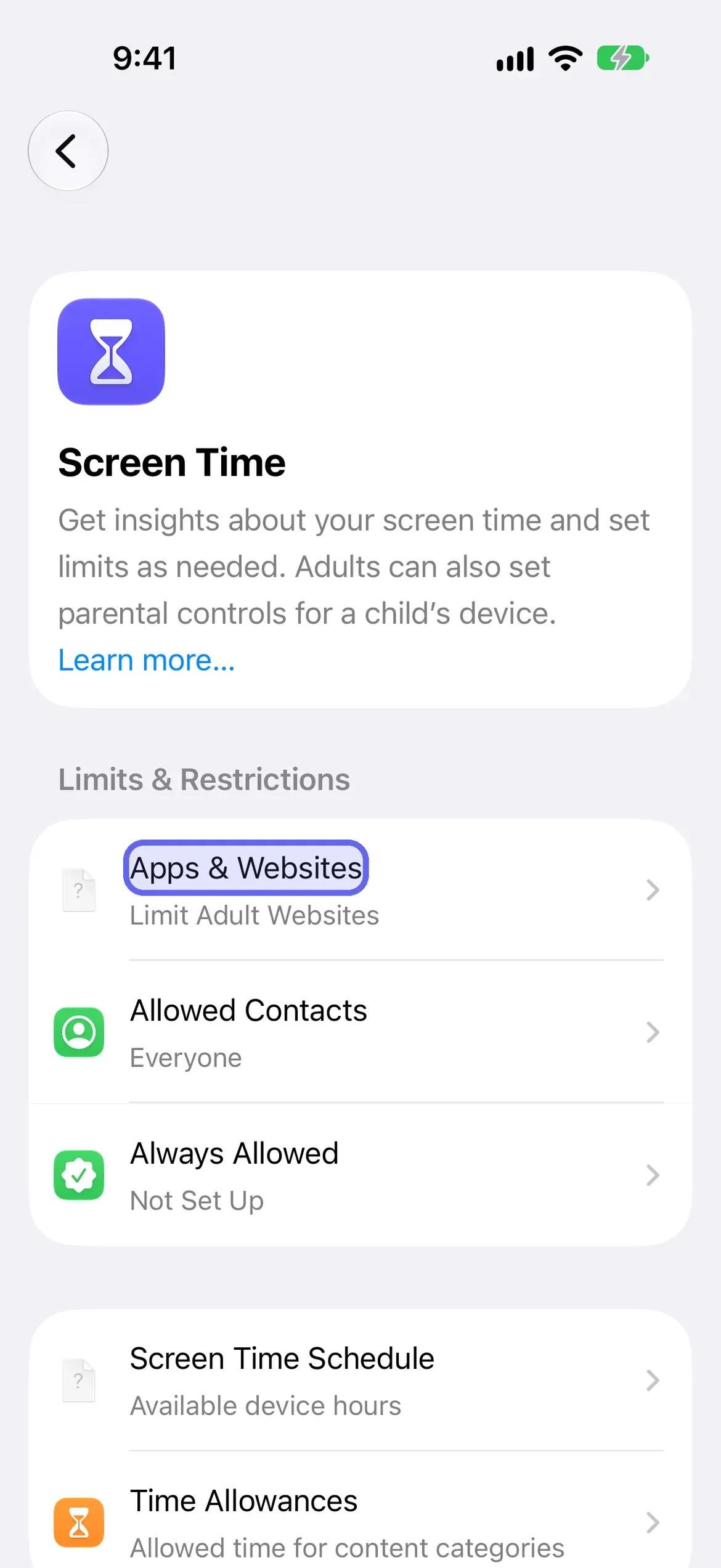
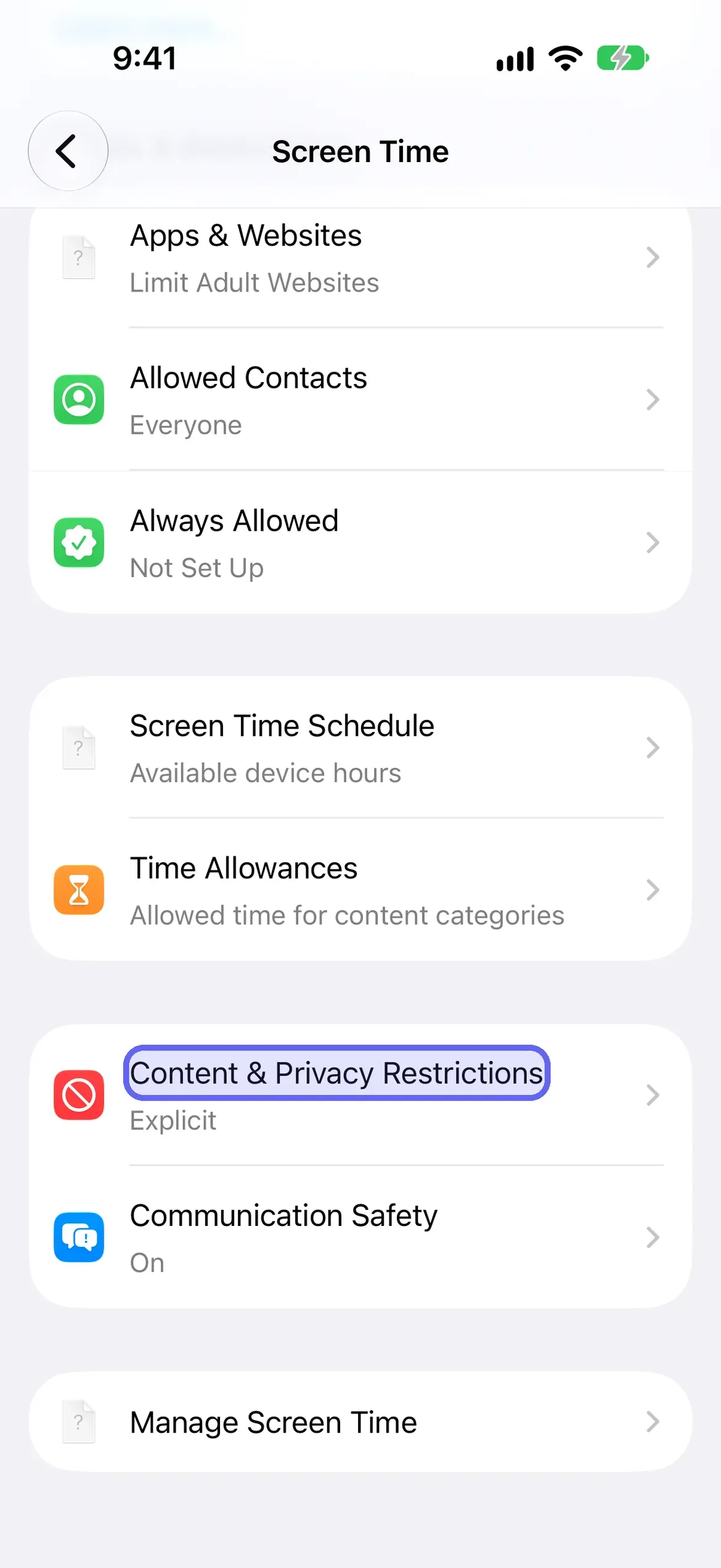
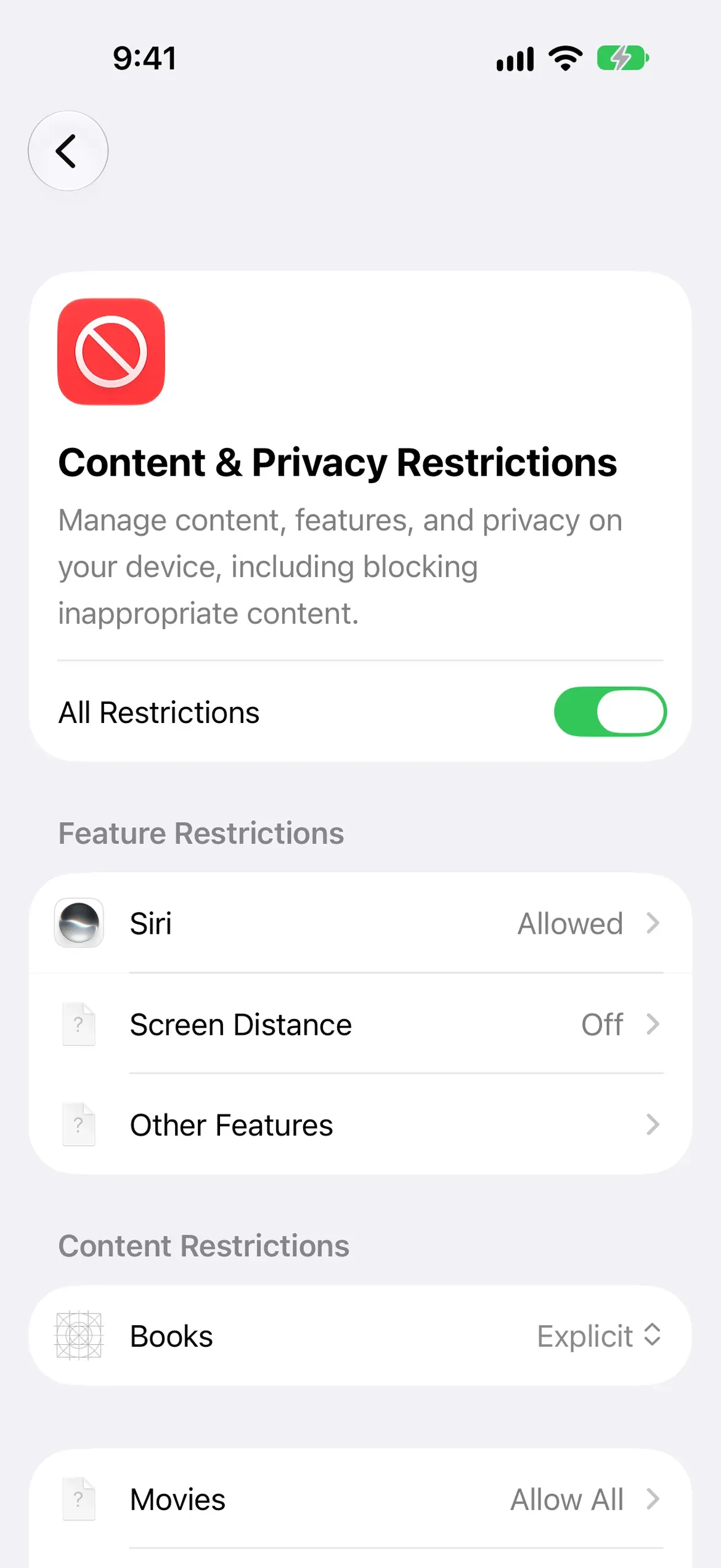
Time Allowances (App Limits on iOS 26)
Time Allowances give a category of apps a daily budget. Apple says you can use apps in a category until they reach the category’s allowance or the daily total.
Drag a slider to set your total, or tap a category and drag its slider. Tap Manage Categories to see which apps sit in each category.
To undo it, change or delete the allowance from the same screen, with the passcode if one is set. On iOS 26 and earlier this is App Limits → Add Limit, and Apple’s note for those versions is that limits can be ignored by default.
Screen Time Schedule (Downtime on iOS 26)
A schedule is hours when most apps are off. Each time window shows which Time Allowance categories stay available.
- Turn on Schedule.
- Tap Add Schedule, choose the days, and set a time window.
To undo it, turn off Schedule or delete the window, with the passcode if one is set. On iOS 26 and earlier this is Downtime; with a passcode set, Block at Downtime makes restricted apps unavailable instead of dimmed.
Always Allowed
Always Allowed lists the apps and contacts that stay available regardless of any schedule or allowance, so check it when a limit “isn’t working”: an app in this list is never limited.
Tap Add Apps or Add People, or Edit to remove one.
Content & Privacy Restrictions and Apps & Websites
Content & Privacy Restrictions controls content and built-in features; Apps & Websites blocks specific sites.
Allow or block the content types under Content Restrictions, and tap Other Features for things like AirDrop and Camera.
To undo it, flip it back, with the passcode if one is set. For websites, see how to block websites on iPhone. For every Screen Time setting in one place, see our complete Screen Time guide.
How do you lock yourself into one app?
Guided Access is the odd one out: instead of locking apps away, it locks you in to one app. Go to Settings → Accessibility → Guided Access, turn it on, and set a passcode. Open the app, triple-click the side button, and tap Start. To end a session, triple-click the side button again, authenticate with your Guided Access passcode or Face ID, and tap End.
You can set a time limit, disable touch on parts of the screen, and block the keyboard. Apple notes Crash Detection and Emergency Services aren’t available during a session, so end it to make an emergency call. The off-switch is the Guided Access passcode, which you chose. It’s for handing your phone over for one app, or a focused stretch of reading.
Which built-in method should you use?
Pick by the problem. If your worry is other people on your phone, lock or hide the app. If your worry is yourself, use Screen Time, and accept that you hold the code unless you hand it to someone.
| Method | What it stops | Who can turn it off | Cost |
|---|---|---|---|
| Require Face ID | Others opening one app | You, with Face ID | Free |
| Hide app | Others finding one app | You, with Face ID | Free |
| Time Allowances (App Limits on iOS 26) | Your daily use of a category | Whoever knows the Screen Time passcode (you, by default) | Free |
| Screen Time Schedule (Downtime on iOS 26) | Your use during set hours | Whoever knows the Screen Time passcode (you, by default) | Free |
| Content & Privacy Restrictions | Selected content and features | Whoever knows the Screen Time passcode (you, by default) | Free |
| Guided Access | Leaving one app during a session | The Guided Access passcode you set | Free |
Sources
Steps checked against Apple's iOS 27 guides on October 16, 2026. We re-check every 90 days. Editorial policy.
Frequently Asked Questions
How do I lock an app with Face ID on iPhone?
Touch and hold the app icon on your Home Screen, tap Require Face ID, then tap it again. To undo it, touch and hold the icon and choose Don't Require Face ID. Apps that come installed can't be hidden; check on your phone which built-in apps can be locked.
What is the difference between locking and blocking an app?
Locking an app makes opening it need Face ID, a fingerprint or your passcode, which protects it from other people. Blocking uses Screen Time to stop you using it, by schedule or allowance. Both can be undone by you unless someone else holds the code.
How do I block apps on iPhone on iOS 27?
Use Settings, Screen Time. Set a Screen Time Schedule for hours, Time Allowances for daily time per category, and Apps & Websites to block specific sites. App Limits and Downtime are the iOS 26 and earlier names for similar settings.
Is there a way to lock apps so I can't unlock them myself?
Only if someone else controls the code. Every built-in lock opens for whoever knows the passcode or owns the face. Giving a partner the Screen Time passcode, or using a mutual lock app, puts another person in the decision.